
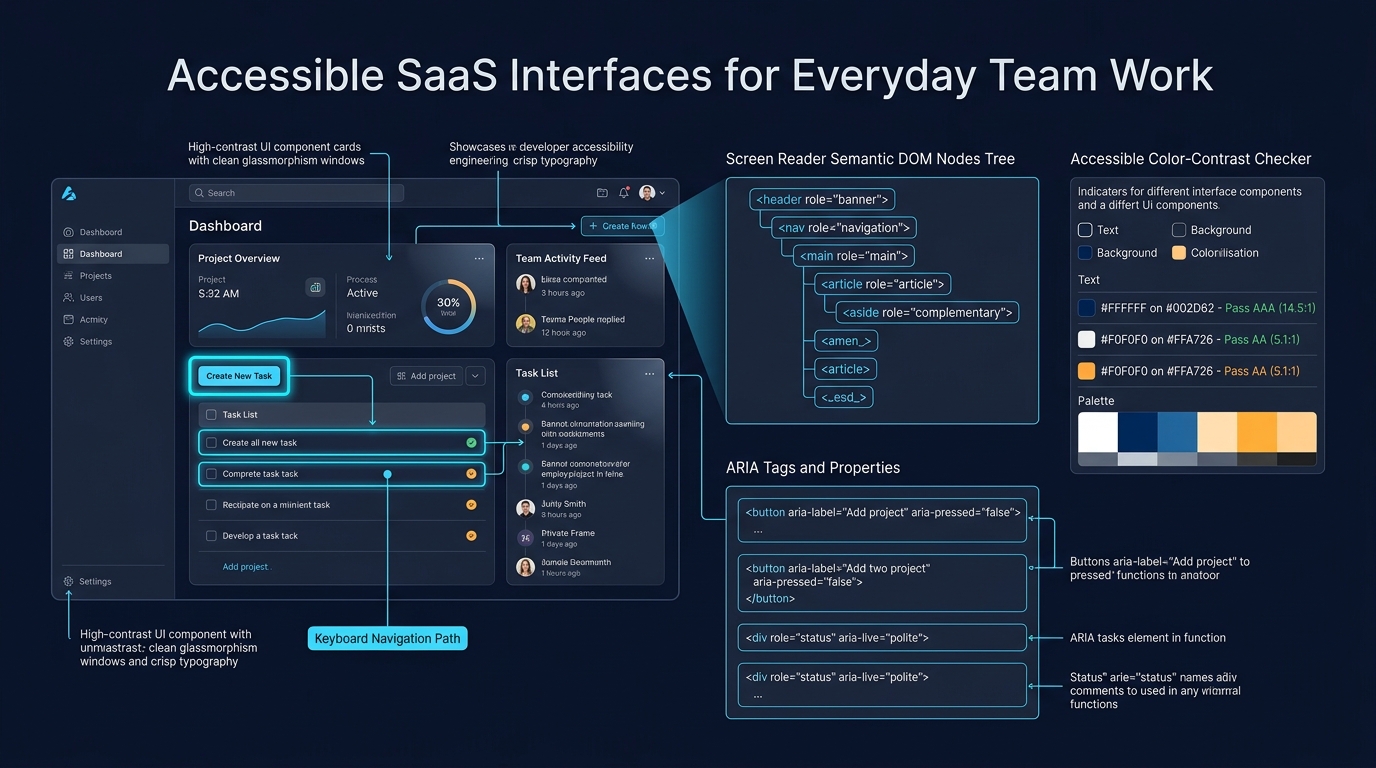
Accessible SaaS interfaces let people complete their work using the input methods, assistive technologies, and display settings they need. The practical starting point is a task: create a project, invite a colleague, review a report, or change a setting. Follow that task through every control and state, including errors and interruptions.
Visual polish can coexist with inaccessible behavior. A dialog may look clear while trapping focus incorrectly. A chart may communicate a trend only through color. An interface needs deliberate structure and interaction rules as well as an attractive design system.
Start with semantic controls
Use elements that express what they do. A button performs an action, a link navigates, and a form groups inputs for submission. Native elements provide established behavior that a custom clickable container would otherwise need to recreate.
Give pages a meaningful heading structure and make the main working area identifiable. In a dashboard with persistent navigation, a user should be able to reach the current task without repeatedly moving through every menu item. Keep navigation labels consistent across screens.
Review icon-only controls carefully. A familiar shape is not always an understandable name, especially when several similar actions appear together. Provide an accessible name and use visible text where the action would otherwise be ambiguous or consequential.
Give every input a clear label
Labels should remain available while the user enters information. Placeholder text can illustrate a value, but it disappears during typing and may not provide the association assistive technology needs. W3C's guidance on labeling controls explains how labels are associated with form controls and why the relationship matters.
Place instructions near the relevant field and state required formats before submission. If a workspace slug accepts a restricted character set, explain the rule in ordinary language. Avoid forcing the user to discover several hidden requirements through repeated failure.
For grouped choices, provide a clear group name and individual option labels. A role selector should explain the practical permission difference, especially when the customer is granting access to billing or private records. The label needs to support a meaningful decision, not merely identify the component.
Make keyboard movement predictable
Walk through the main workflow using only the keyboard. The focus order should follow the task's visual and logical sequence. Focus should be visible, and every important action should be reachable without a mouse or precise pointer movement.
Dialogs need particular care. W3C's modal dialog pattern describes moving focus into the dialog, keeping keyboard focus within it while open, and returning focus appropriately when it closes. Use an established accessible implementation and verify its behavior in your actual page.
Avoid rearranging focus unexpectedly after a background update. When a user saves a setting, the interface can announce the result without moving them to the top of the page. When a destructive action removes the focused row, choose a sensible next focus target rather than leaving the user without context.
Make errors recoverable
An error should explain what happened, identify the affected field or operation, and help the user continue. A red border by itself communicates neither the problem nor the correction. Preserve valid input so the user does not need to recreate work after fixing one value.
For a form with several errors, provide an understandable summary and a way to reach the relevant controls. Associate field-specific messages with their inputs. Keep wording concrete, such as explaining that the invitation address is already a member of the workspace.
Consider failures beyond validation. A network interruption, expired session, or changed permission can occur after a person has spent time completing a task. Explain whether the work was saved and what recovery is available. Avoid a generic failure message that leaves the customer guessing whether another attempt will duplicate the action.
Review tables and charts as working tools
Use meaningful table headers and make sorting controls understandable. A user should be able to identify the active sort order and relate a cell to its row and column context. For dense tables, decide which information is essential to the current task and which belongs in a detail view.
Avoid communicating status through color alone. Pair color with text, a recognizable symbol with a name, or another clear cue. A warning row should remain understandable when viewed in a different contrast mode or printed without color.
Provide a textual summary or accessible data alternative for important charts. A customer trying to understand overdue inspections needs the relevant counts and time period, not simply a visually impressive shape. Keep interactive filtering understandable when it changes the underlying result.
Work through a team invitation
Imagine a hypothetical project review tool. A workspace owner opens an invitation dialog, enters a colleague's address, selects a role, and sends the invitation. The dialog announces its purpose, focus begins at a useful position, and the owner can move through all controls with the keyboard.
If the address is invalid, the entered role stays selected and the address field receives a specific explanation. After a successful send, the interface communicates the pending invitation and returns focus to a sensible place in the member list. The new row describes its status in text.
Now repeat the task at a larger text size and on a narrow viewport. The role description should remain readable, the submit action should remain reachable, and the dialog should not hide essential controls outside an unusable fixed height. This is a workflow review, not merely a screenshot comparison.
Combine automated checks with observation
Automated accessibility tools can identify some structural and contrast issues. They cannot establish whether every instruction is understandable or whether a complex interaction makes sense to the people using it. Combine them with keyboard checks, assistive technology checks, and appropriate user feedback.
Fix shared components when a problem repeats, then review the pages that consume them. A component library provides a foundation, but application-specific labels, content, state changes, and composition still need attention.
Use the application shell and design foundation described by Agentium Start to establish consistent patterns. Make your acceptance criteria about completed customer tasks so accessibility remains part of everyday product work as the application grows.
Authority References & Sources: