Every personal knowledge management (PKM) enthusiast suffers from the same paradox: the moment you leave your markdown editor and open a web browser, your structured second brain dissolves into pure chaos.
You start researching a topic like Distributed Systems Consensus Protocols. Two hours later, you have 47 open tabs spanning Paxos whitepapers, Raft explainer videos, blog posts by distributed systems engineers, and Stack Overflow debates.
What usually happens next?
- Option A: You bookmark the tabs into a folder named "To Read - Distributed Systems," which you will never open again.
- Option B: You use a flat tab dumper like OneTab, saving 47 raw links in an unsearchable text list with zero context.
- Option C: You spend 45 minutes manually copying and pasting URLs, titles, and blockquotes into an Obsidian note, destroying your research momentum.
There is a much better way: preserving the causal tree of your research and exporting it directly into a native Obsidian Canvas (.canvas) file.
Why Obsidian Canvas Needs Relational Browsing Data
Obsidian Canvas revolutionized personal knowledge management by giving notes, links, and cards a visual 2D workspace. Instead of forcing thoughts into rigid folders or linear outlines, Canvas lets you cluster related ideas, draw directional edges between arguments, and map dependencies visually.
However, creating an Obsidian Canvas manually from web research has always been painful. You have to create card nodes one by one, copy URLs, paste quotes, and manually reconnect the arrows.
When you research on the web, your brain is already creating a directed acyclic graph (DAG):
- Tab A is the root question.
- Tab B and C are branching hypotheses.
- Tab D is evidence supporting hypothesis C.
If your browser extension tracks parent-child causality while you read, generating an Obsidian Canvas requires just one click.
                    ┌─► [MIT 6.824 Lecture Notes]
                    │
[Raft Consensus] ───┼─► [Diego Ongaro Dissertation]
                    │       │
                    │       └─► [Pinned Quote: Log Compaction Rule]
                    │
                    └─► [Raft vs Paxos Comparison]
The Complete Workflow: From Browser to Obsidian
Step 1: Install Agentium Trace
Agentium Trace runs in the native side panel of your browser:
Because Trace is 100% local-first, your browsing trees, notes, and session history remain stored in your local browser IndexedDB—never transmitted to third-party ad networks or remote servers.
Step 2: Browse With Automatic Causality Tracking
Open the Trace side panel before beginning your research session. As you browse:
- Open search queries and middle-click articles.
- Trace automatically indents each child tab under its parent source.
- If an article doesn't answer your question, close it; Trace flags dead-ends so your graph stays clean.
Step 3: Pin High-Signal Quotes with Alt+S
When you find a breakthrough paragraph, key statistic, or code snippet:
- Highlight the text with your cursor.
- Press
Alt+S(or right-click and choose 🐇 Pin Highlight to Agentium Trace). - The quote is pinned directly to that page node inside your visual tree with its exact source URL and timestamp.
Step 4: Export Directly to Obsidian Canvas (.canvas)
Once your research session reaches a natural checkpoint:
- Open the Trace Canvas view from the toolbar.
- Click Export in the top navigation bar.
- Select Obsidian Canvas (
.canvas) and hit Download. - Drag the generated
.canvasfile directly into your Obsidian Vault folder.
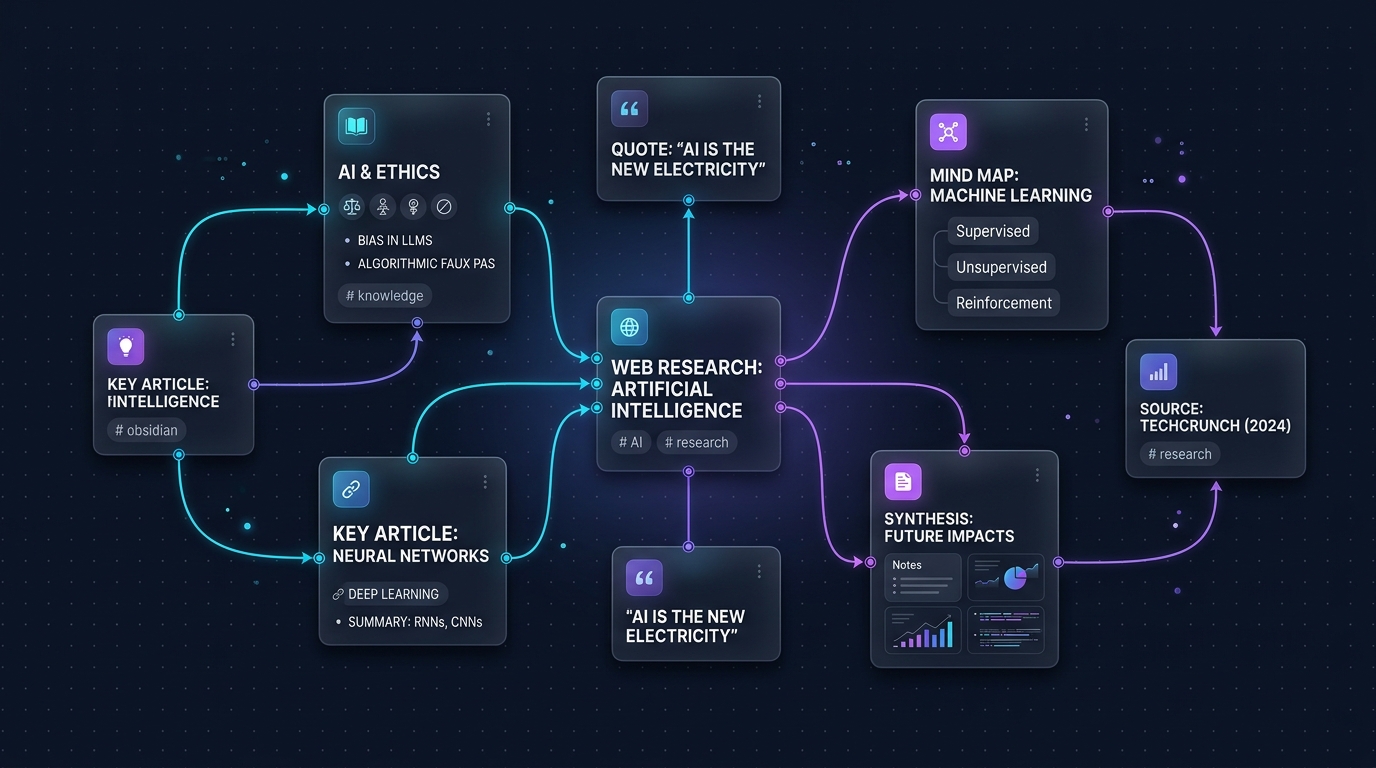
What the Export Looks Like Inside Obsidian
When you open the .canvas file inside Obsidian, you get:
- Web Nodes: Each visited webpage appears as a color-coded card with page title, favicon, and clickable URL.
- Directional Connectors: Arrows link parent pages to child tabs, visually showing how you arrived at each discovery.
- Embedded Note Cards: Every quote or highlight pinned with
Alt+Sis rendered as an attached Markdown card connected directly to its source node. - Pruned Noise Removed: Inactive or pruned exploratory tabs are filtered out so your canvas contains only high-signal knowledge.
Summary: Stop Losing Your Train of Thought
Knowledge work isn't just about collecting information; it's about preserving context. When you export your web browsing history as an Obsidian Canvas, you aren't just saving bookmarks—you are preserving your exact thought process for your future self.
Try Agentium Trace for Chrome or Firefox today and bridge the gap between web exploration and your second brain.